
The beta is over
TapToNote is on the App Store. Thank you to everyone who tested it.

In the EU? Join the beta on TestFlight.
Become a beta tester
Try TapToNote on your iPhone before it’s out.
Dictate a few notes, connect your AI and tell us what breaks.
Who can test
- Anyone with an iPhone on iOS 26 or later.
- For the AI part: ChatGPT Plus or Pro.
Apply
In the EU? Join the beta on TestFlight.
Which phone do you have?
Open this page on your iPhone.
- Tap the button on your iPhone.
- Install TestFlight from the App Store when asked, then tap Accept and Install.
- Open TapToNote and follow the steps below.
Request sent. Thank you!
We couldn’t send your request. Please check the fields and try again.
What happens next
- We review each request by hand.
- Apple emails you a TestFlight invite at the address you gave.
- Install TestFlight from the App Store, then open the invite on your iPhone. Step by step
- In the app, get Plus and connect ChatGPT. Step by step
Install
After we review your request, Apple emails you a TestFlight invite.
Install TestFlight from the App Store.
On your iPhone, open the invite email from TestFlight and tap View in TestFlight.
On your iPhone, tap Join the beta on TestFlight above.
Tap Accept, then Install.
Tap Open.When there’s a new build, TestFlight tells you: tap Update in TestFlight, or turn on Automatic Updates when TestFlight offers them.
First launch
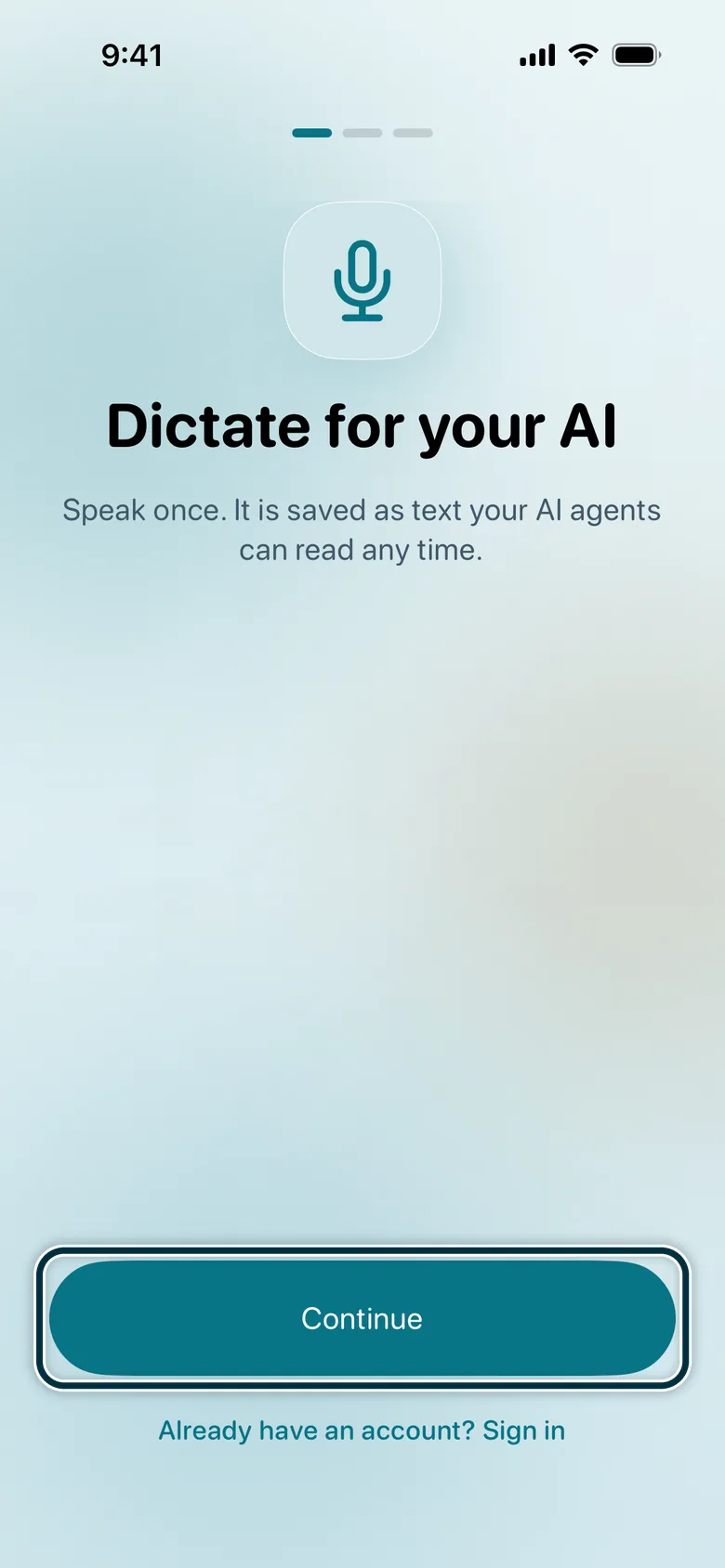
Tap Continue.
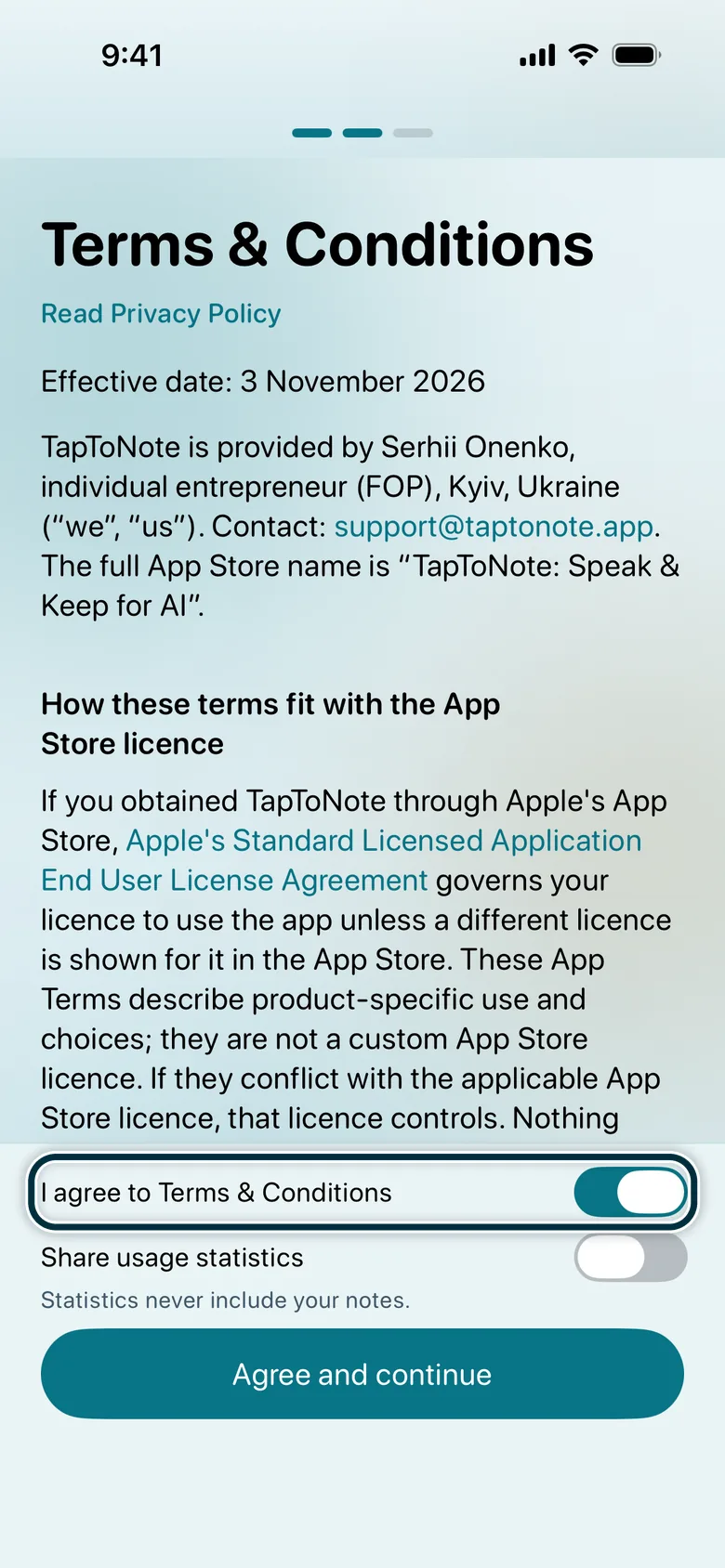
Turn on I agree to Terms & Conditions, then tap Agree and continue.
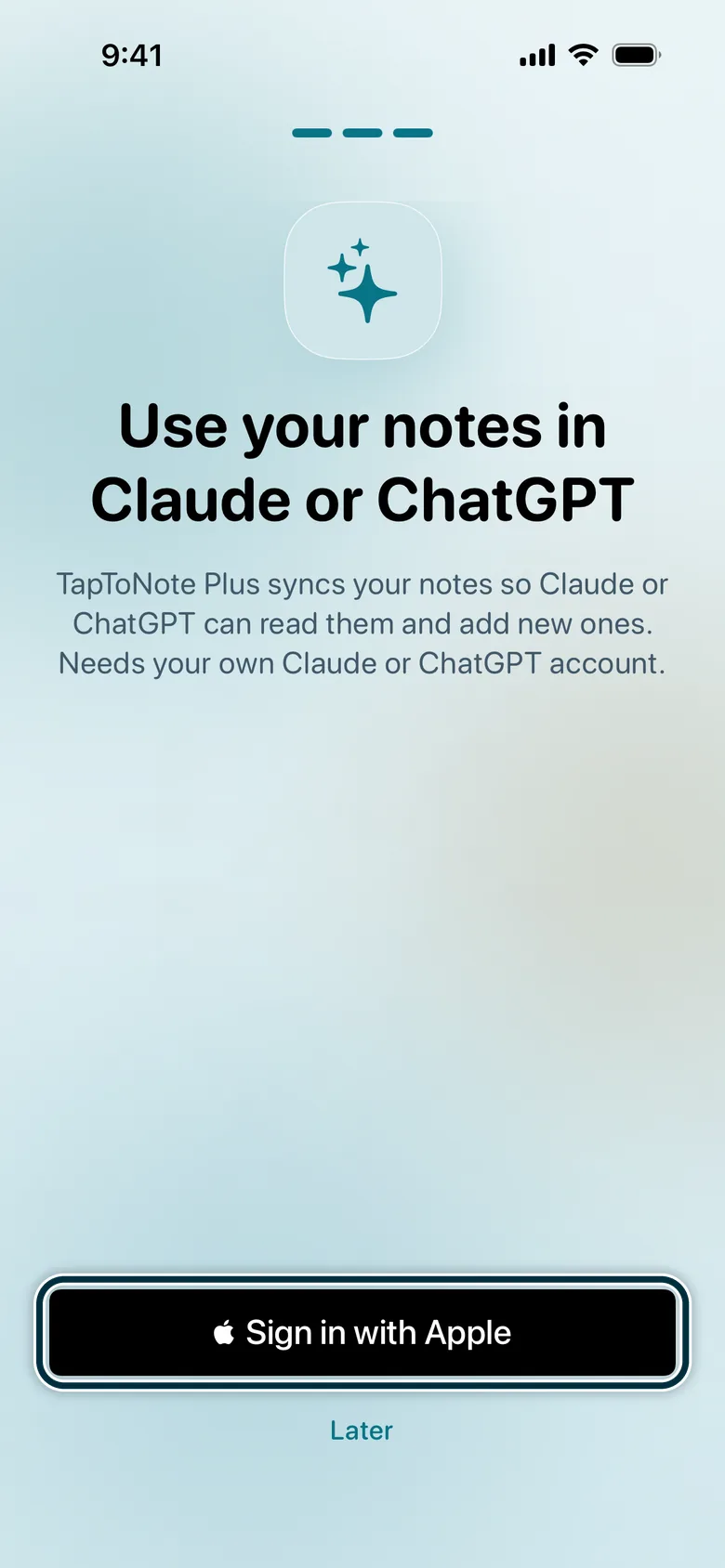
Tap Sign in with Apple.
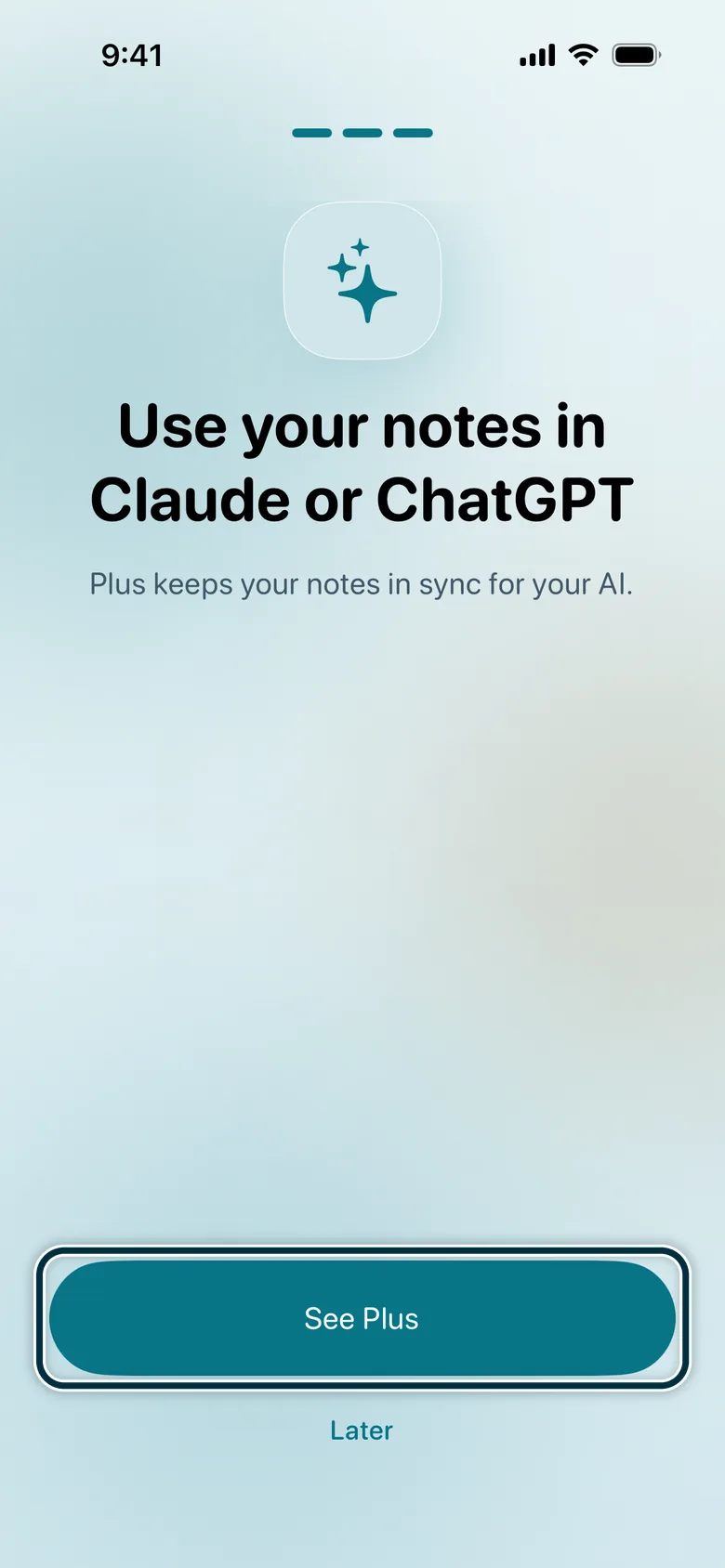
Tap See Plus.
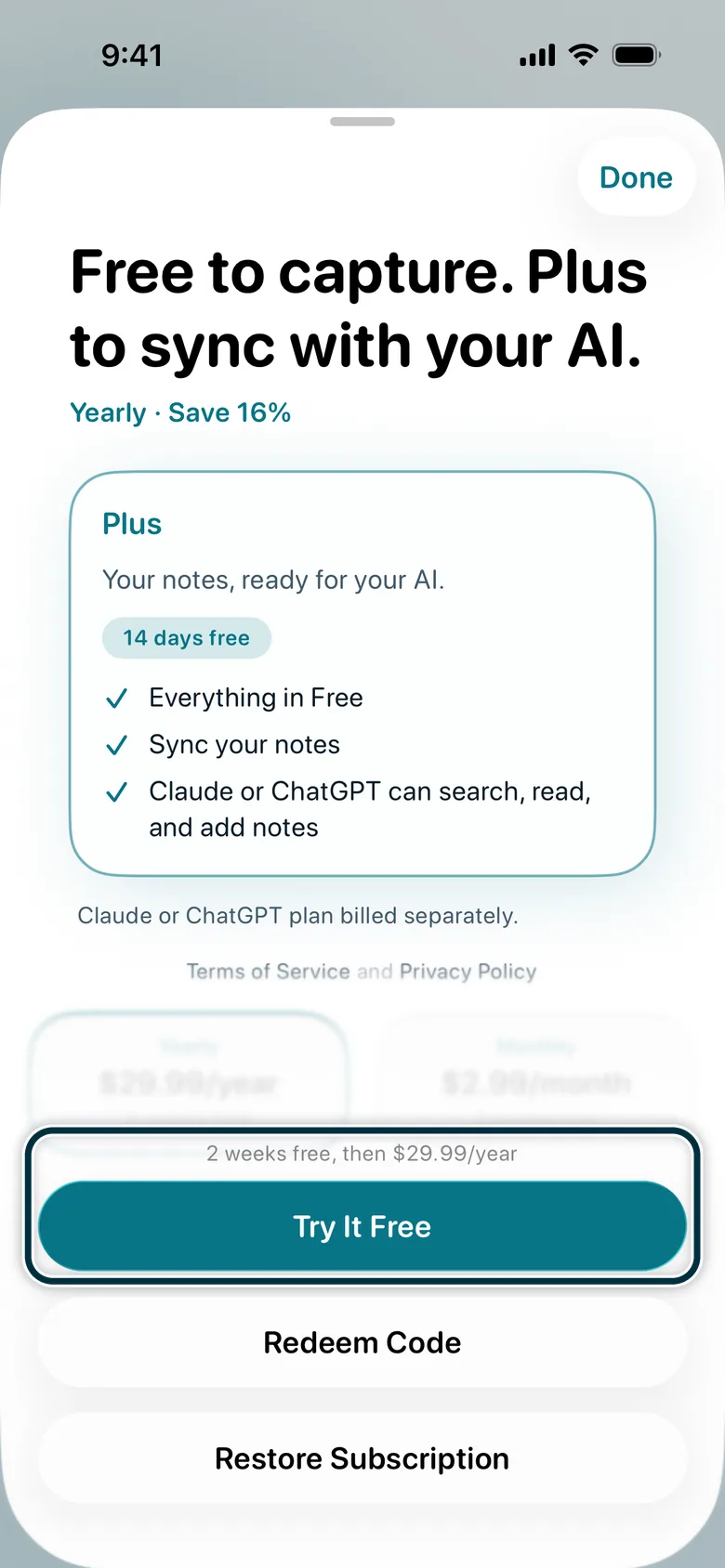
Tap Try It Free.
Confirm the subscription. In-app purchases are free during beta testing.
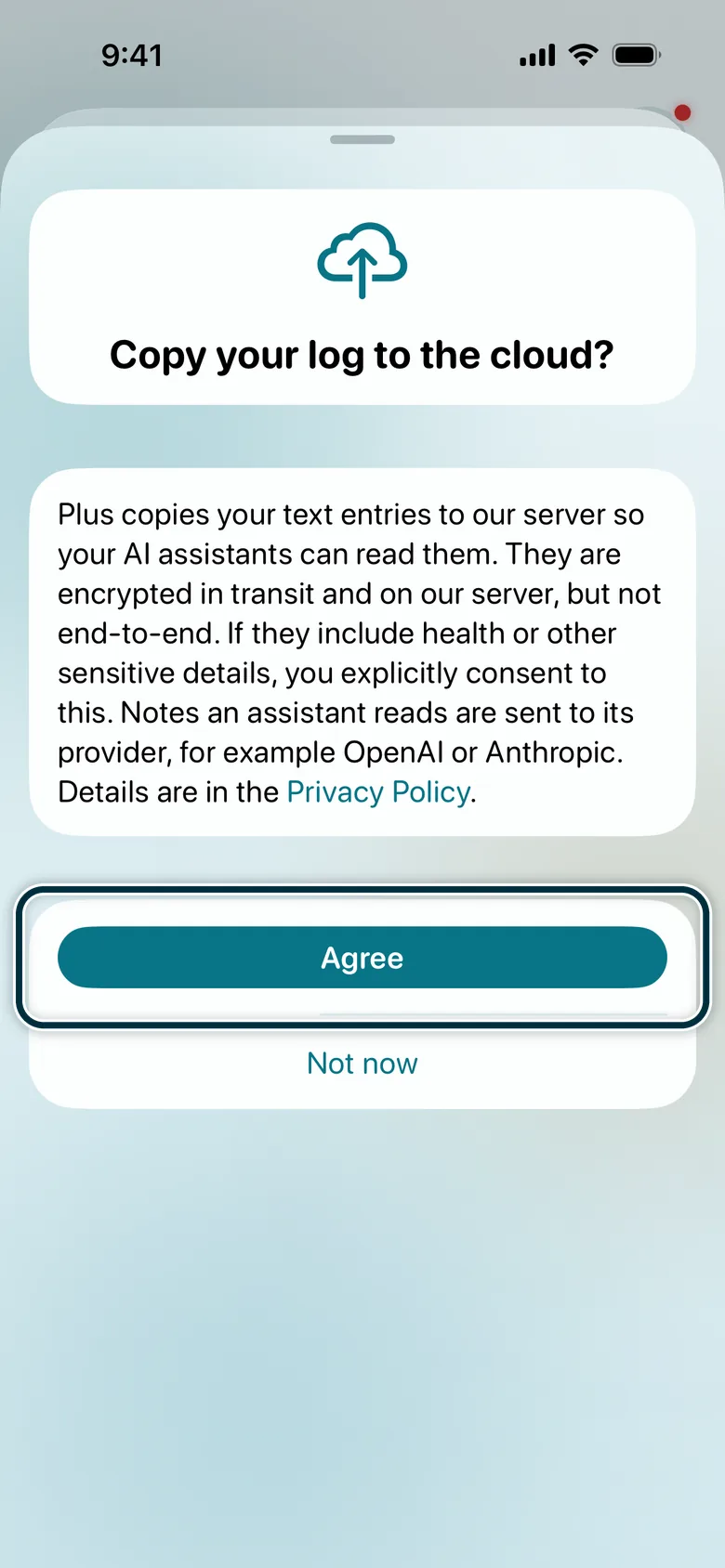
Tap Agree.
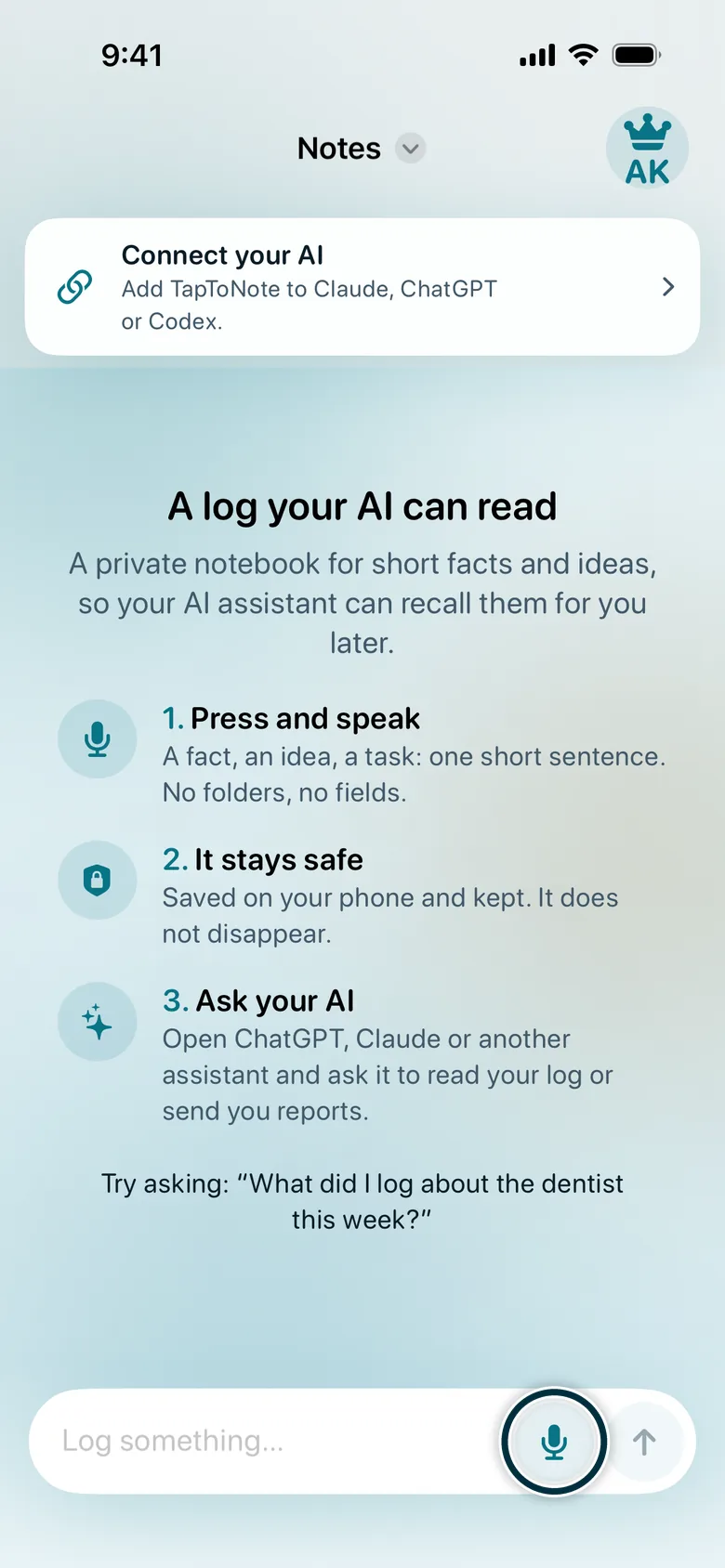
Tap the microphone, allow access and say one thought.
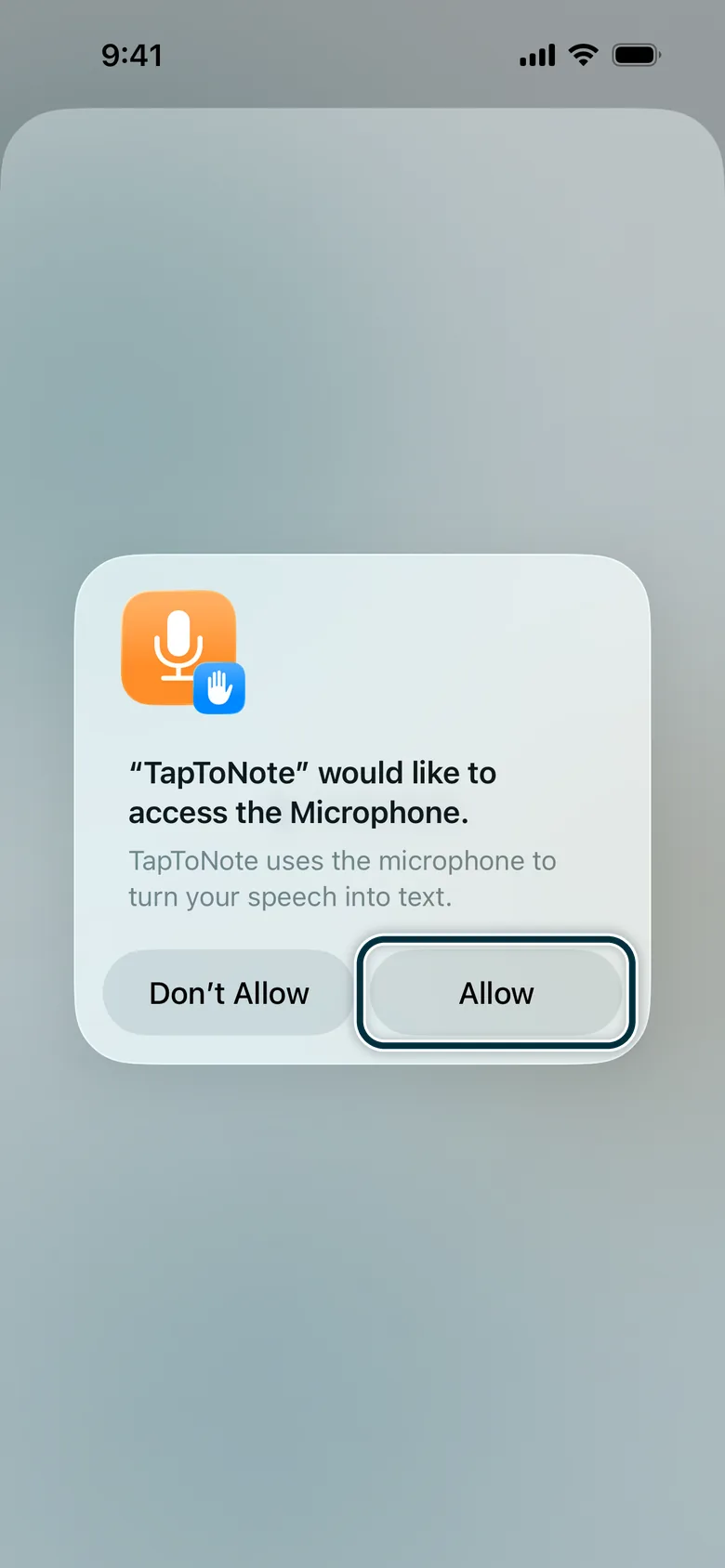
Tap Allow.
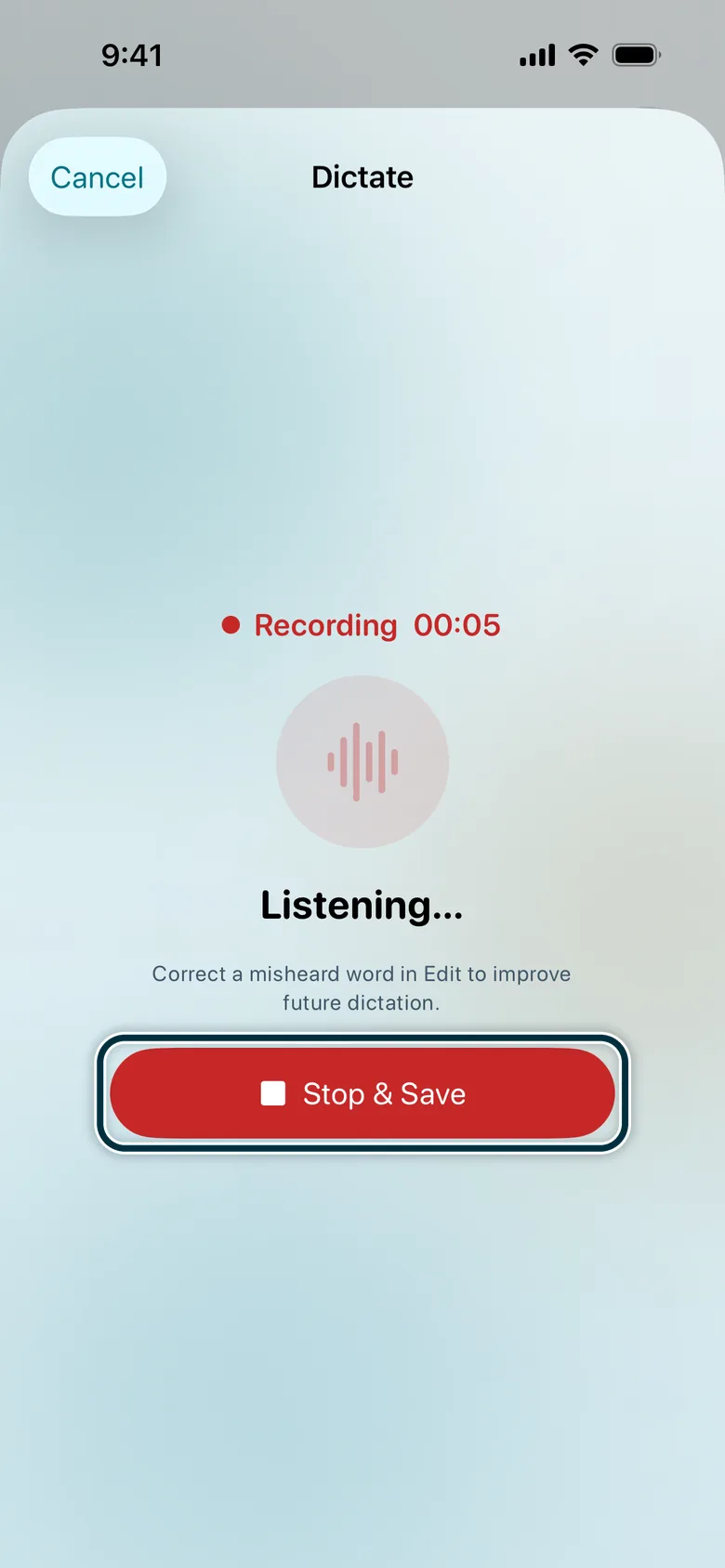
When you’ve said it, tap Stop & Save.
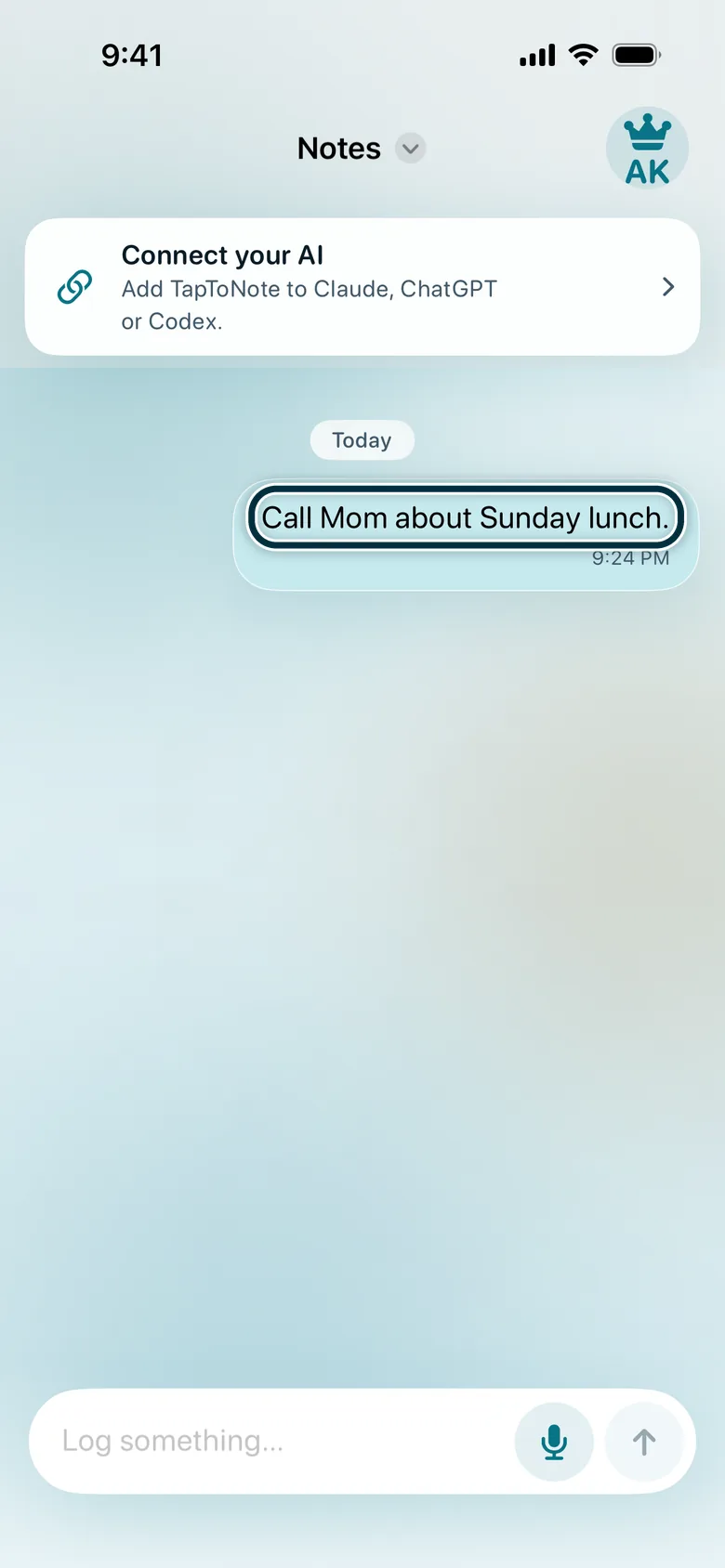
Your note is saved.
Connect ChatGPT
Needs ChatGPT Plus or Pro. Open this page on a computer: taptonote.app/beta/#connect
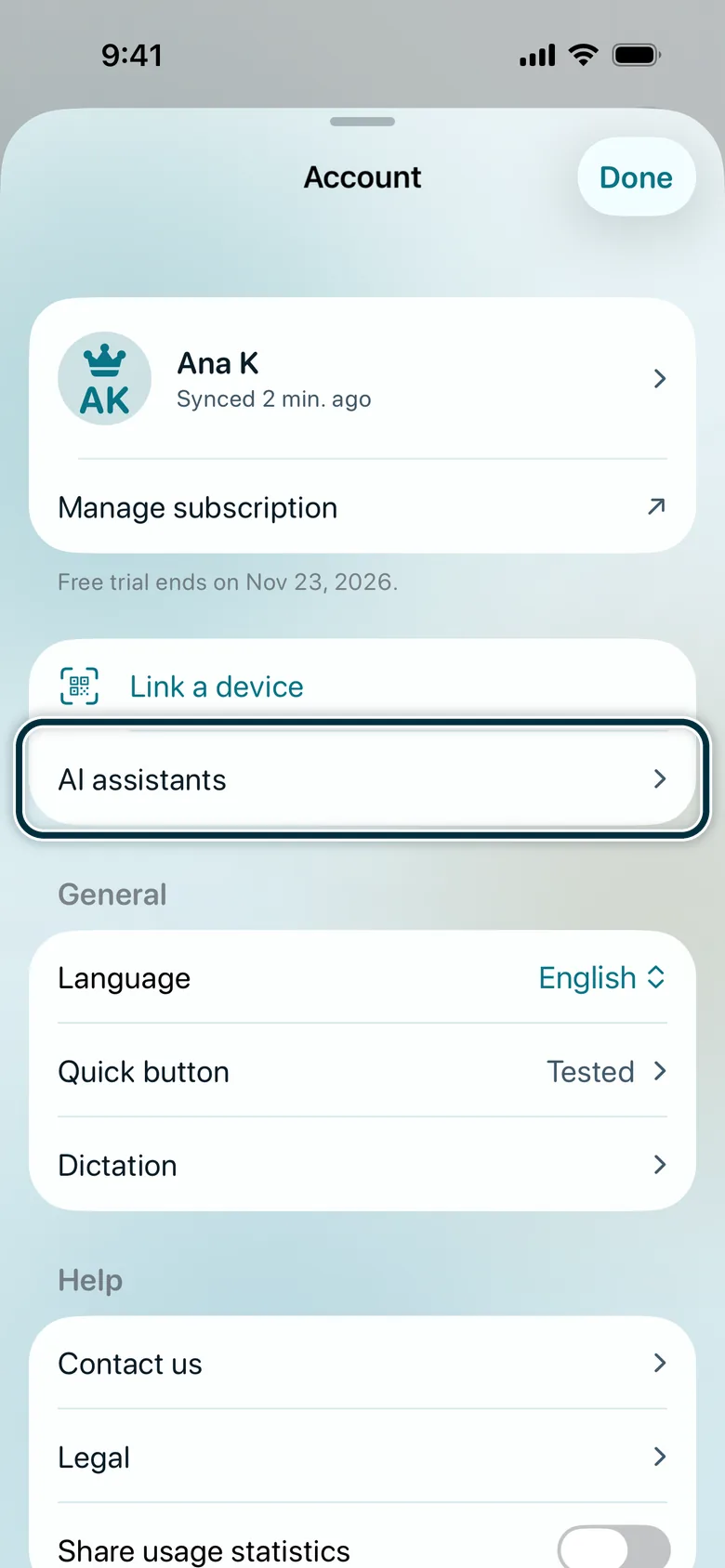
In TapToNote, tap the account button at the top right, then AI assistants.
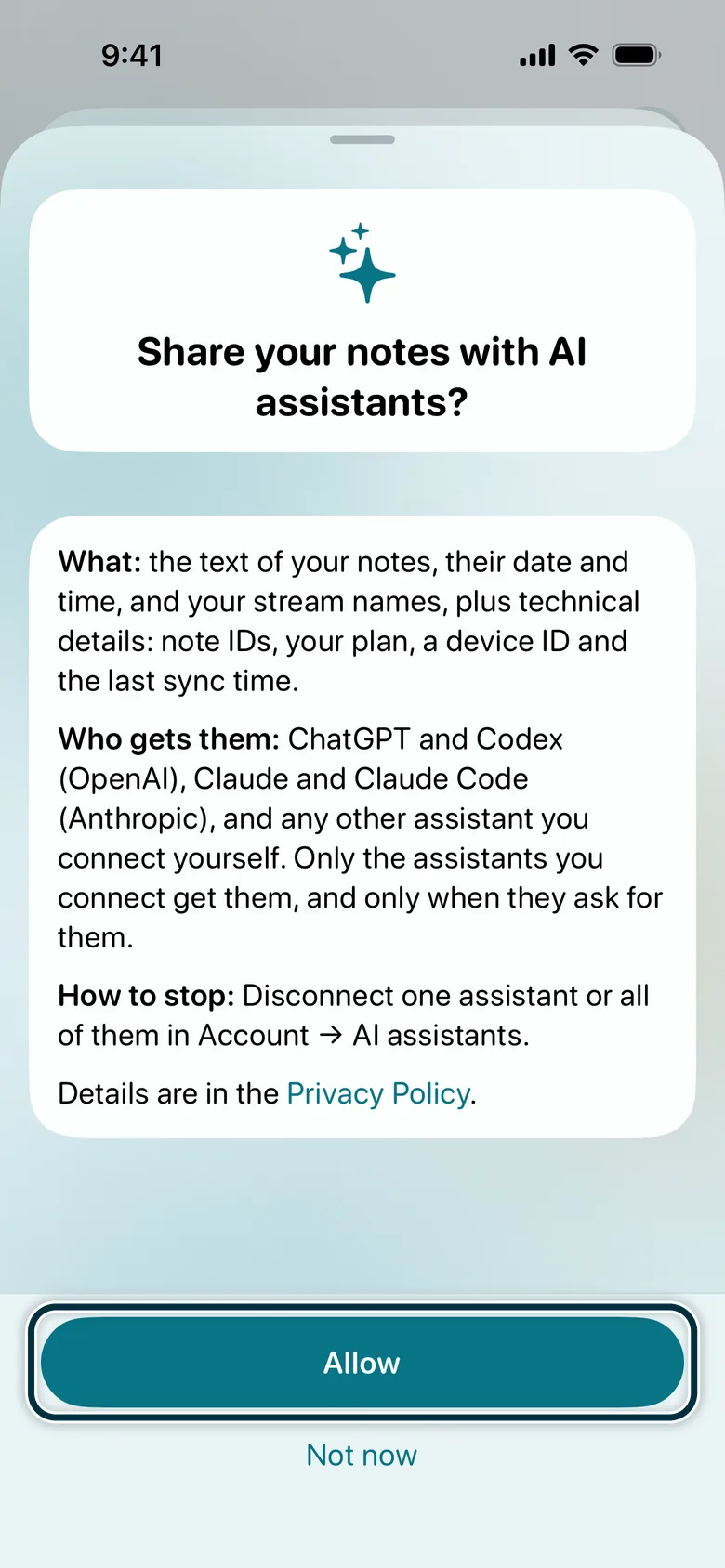
Tap Allow.
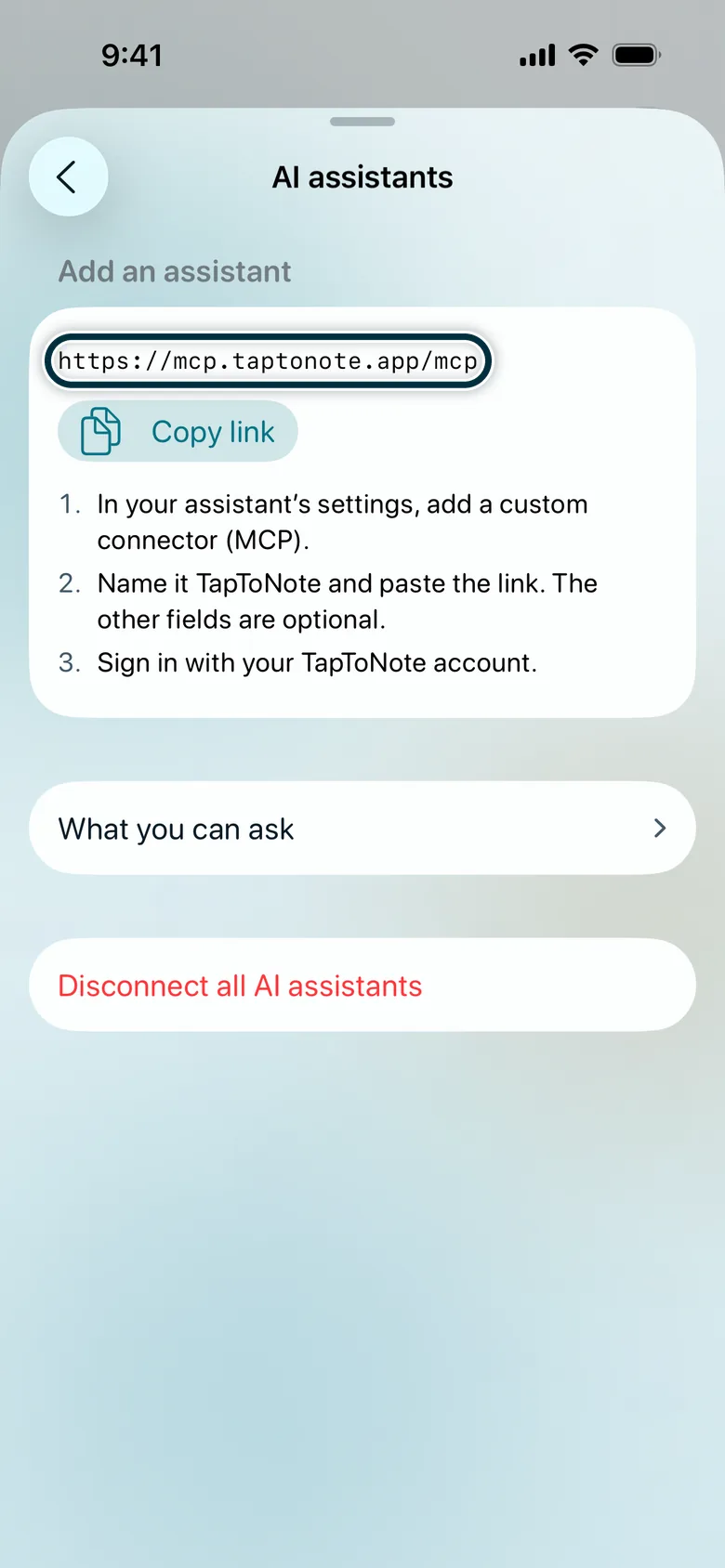
The app shows the link. On the computer, copy it here:
https://mcp.taptonote.app/mcp On the computer, open chatgpt.com/plugins, select +, then Add custom MCP server.
Name it TapToNote and paste the link as the Server URL. Choose OAuth, select I understand and want to continue, then Create as a plugin.
In ChatGPT, open your plugins and install TapToNote.
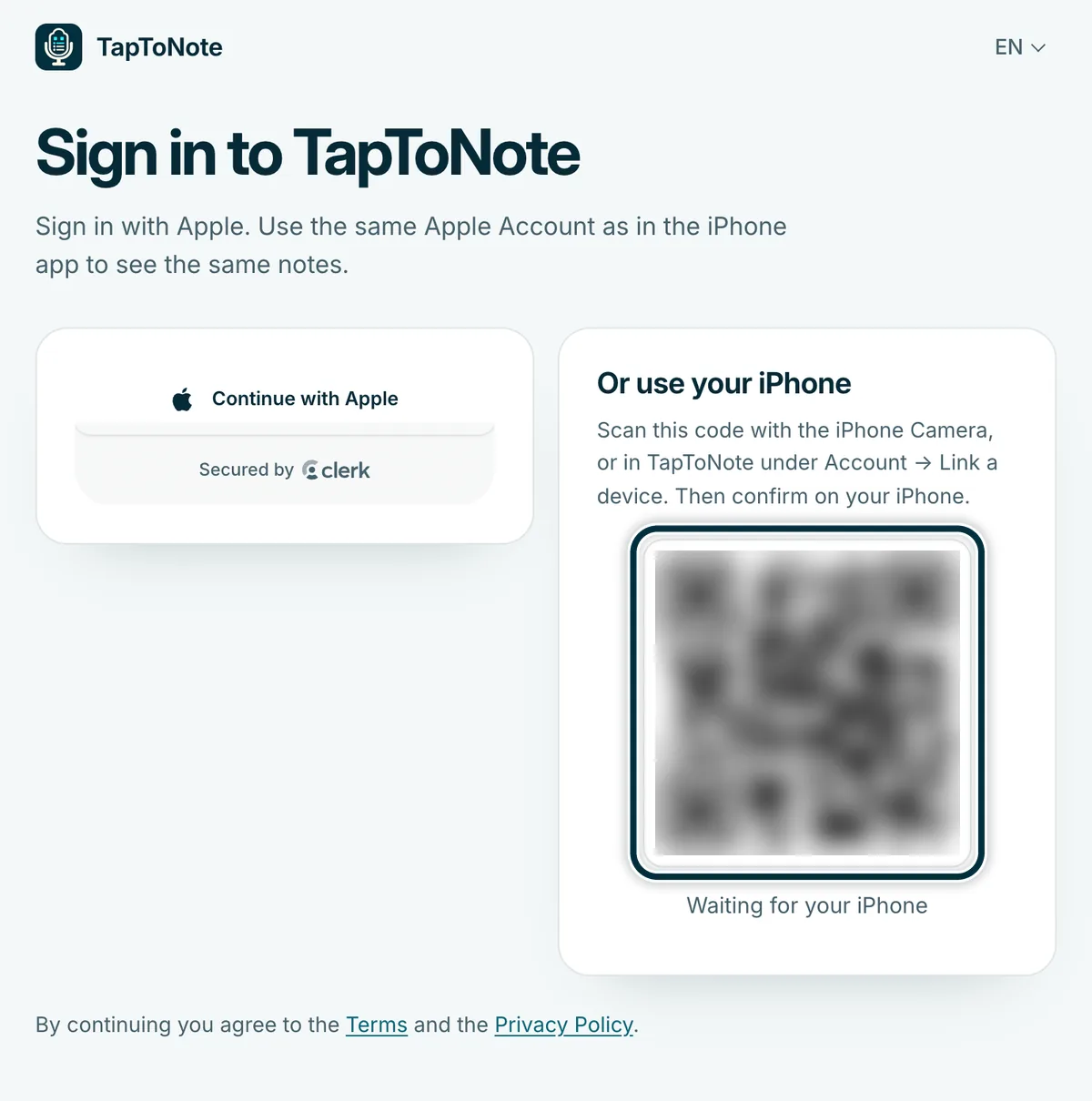
Our sign-in page opens. Scan the QR code with your iPhone camera and confirm in TapToNote.Or continue with Apple, using the same Apple Account as on your iPhone.
Select Allow.
In a new chat, type @, choose TapToNote and ask: “What did I note in TapToNote today?”
Report a bug
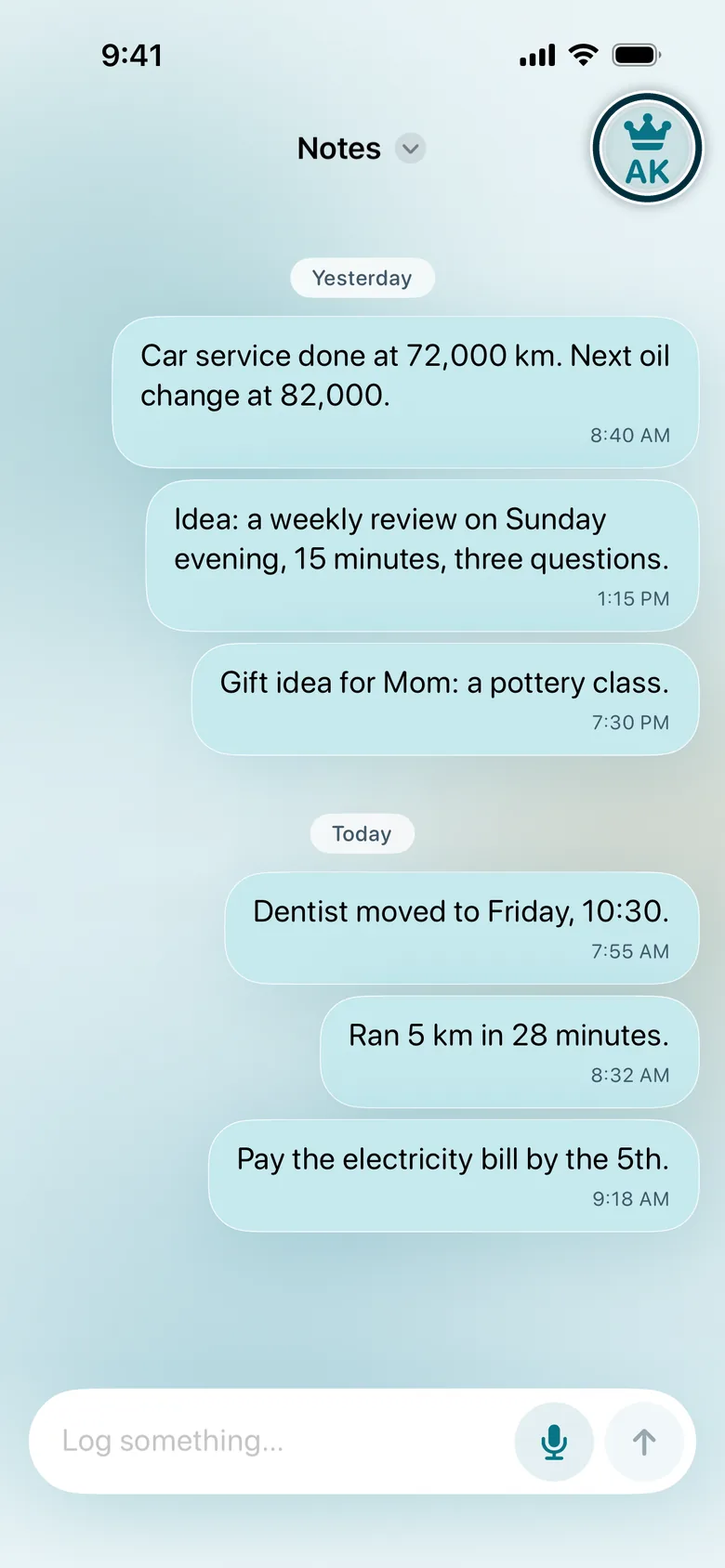
Tap the account button.
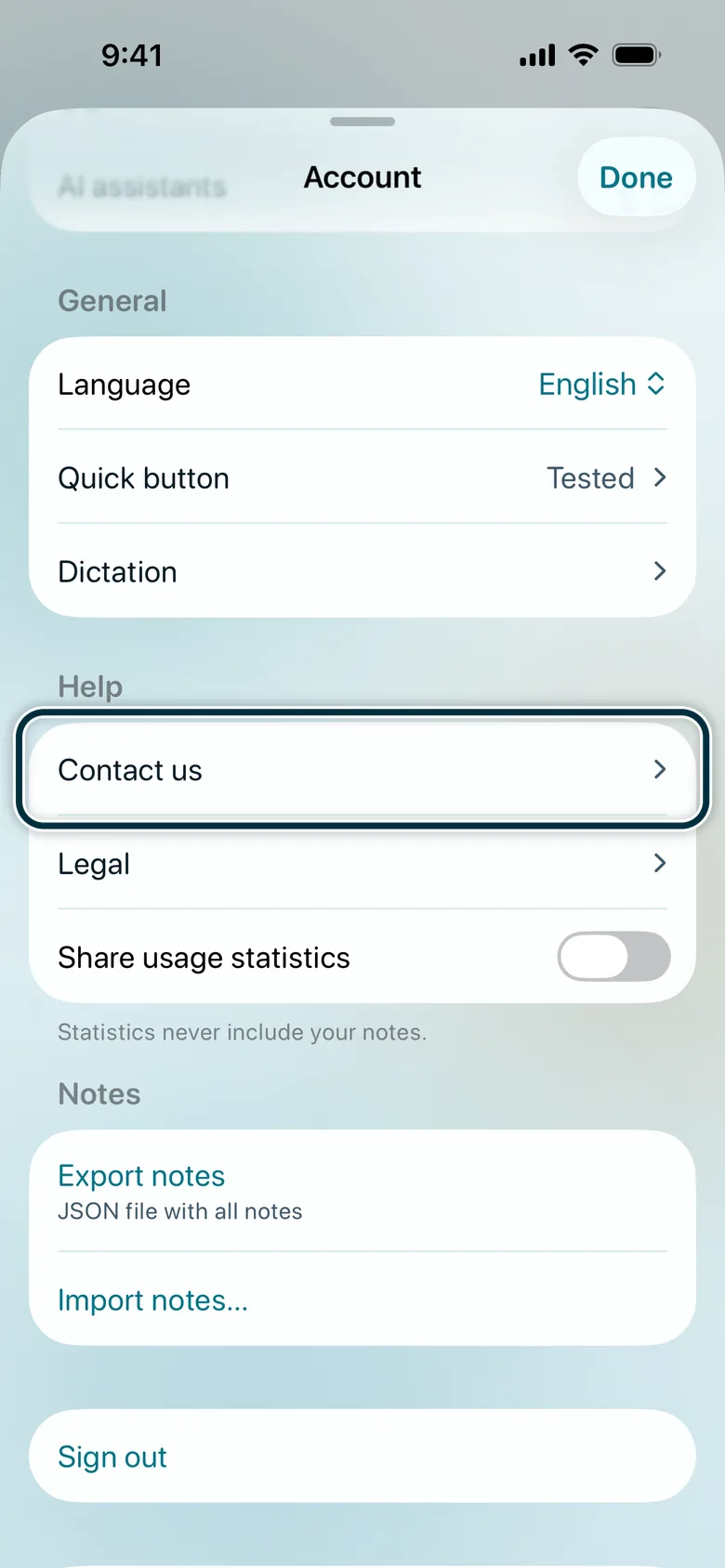
Tap Contact us.
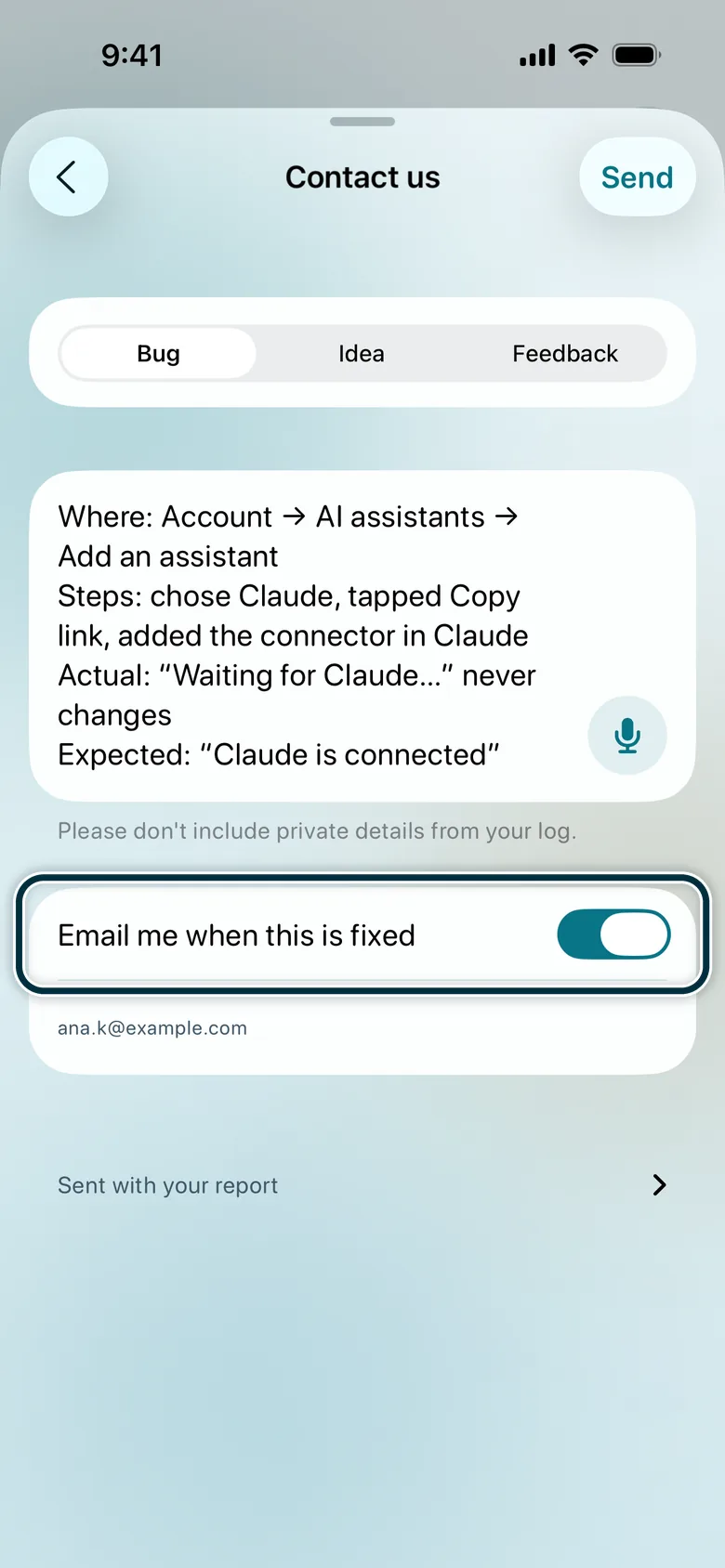
Choose Bug, describe it, turn on Email me when this is fixed, tap Send.Describe it as: Where, Steps, Actual, Expected.
Or take a screenshot, tap its thumbnail, tap Done, then Share Beta Feedback.
How fast and accurate is dictation on your iPhone? Tell us in the app: Contact us → Feedback.
If you are stuck
- No invite email
- Check your spam and search your mail for TestFlight. It comes to the address you gave in the form; your iPhone’s Apple Account can use another one. Still nothing? Write to support@taptonote.app and we’ll send it again.
- The invite opened on a computer and shows a code
- On your iPhone, open TestFlight, tap Redeem and enter the code.
- TestFlight doesn’t offer Install
- TapToNote needs iOS 26 or later. Update your iPhone in Settings → General → Software Update.
- No access to the microphone
- Settings → Apps → TapToNote → Microphone.
- Plus ended after a few days
- In TestFlight, a subscription renews every day, up to 6 times in a week, then ends. Open Account → Renew Plus to get it again.
- AI assistants shows Review and allow instead of the link
- You tapped Not now. Tap Review and allow, then Allow.
- ChatGPT has no Add custom MCP server
- Use chatgpt.com in a browser on a computer, with ChatGPT Plus or Pro. In a work or school workspace, the admin may have turned custom MCP servers off.
- ChatGPT can’t connect
- Check the Server URL:
https://mcp.taptonote.app/mcp, with /mcp at the end, and OAuth as the authentication. - ChatGPT doesn’t use TapToNote
- Type @ and choose TapToNote before your question.
- ChatGPT finds no notes
- Check that you signed in on the computer with the same Apple Account as in the app. Then pull down on the app’s home screen to sync, and ask again.